Board
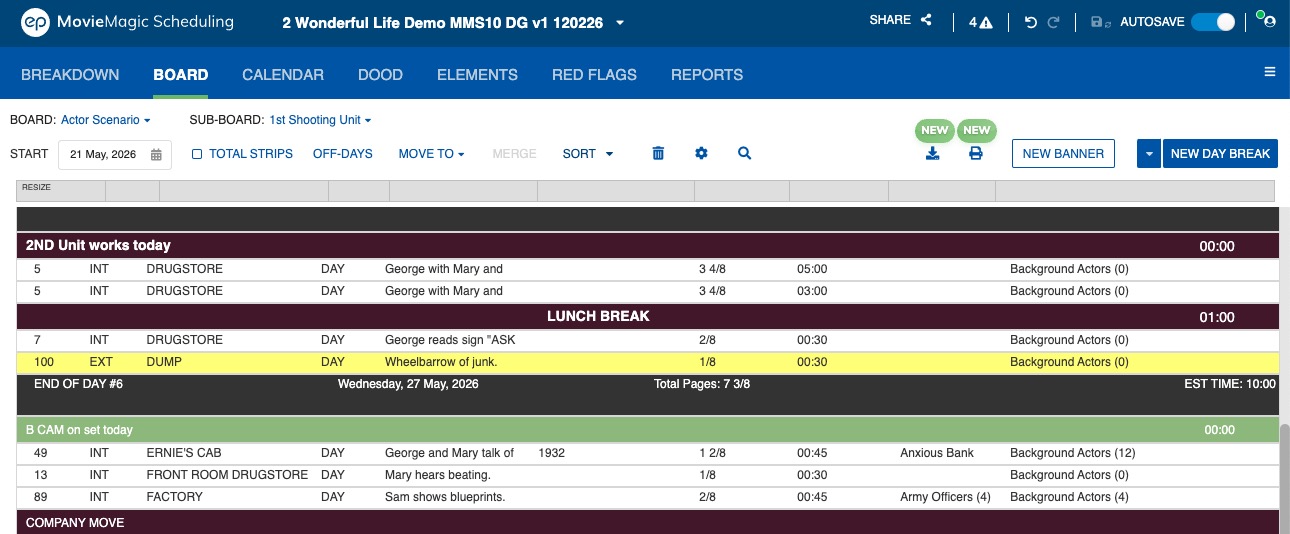
The Board tab displays all Breakdown Sheets in your schedule as Strips, which can be rearranged to find the most efficient order for executing your project.
Your schedule can include as many Boards as needed, with each Board representing a different arrangement of all the Strips (Breakdown Sheets). Each arrangement is saved in a Sub-Board within a Board, and each Board can have multiple Sub-Boards. Common uses for Sub-Boards include scheduling concurrent 1st and 2nd Unit work, organizing episode blocks, or planning pre-production, principal photography, and post-production phases.
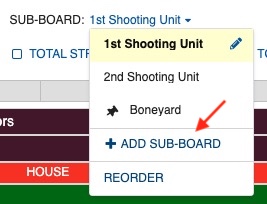
Each Sub-Board has a Start Date, indicating the expected first day that any scheduled Strips in that Sub-Board will be worked. The Boneyard Sub-Board is unique: it is used to archive or "trash" Strips that may be reused later. Strips in the Boneyard are not considered scheduled, and the Start Date is ignored.
You can customize the arrangement and sizing of fields using the Resize option in the screen header. Drag the margins to adjust field widths as needed.
Add a Board or Sub-Board
To add a new Board or Sub-Board:
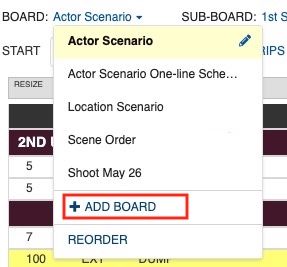
- Click the Board or Sub-Board selector in the top left where the current Board name displays.
- Click + ADD BOARD or + ADD SUB-BOARD.
-
Give your Board or Sub-Board a name.
Note
The Board name must be unique within the schedule.
-
Click ADD BOARD or ADD SUB-BOARD.
- The system then creates and opens the new Board or Sub-Board.
Note
By default, a new Board will put all existing Strips/Breakdown Sheets in the Boneyard Sub-Board.
Change the Active Board or Sub-Board
To change the Board or Sub-Board you're working on:
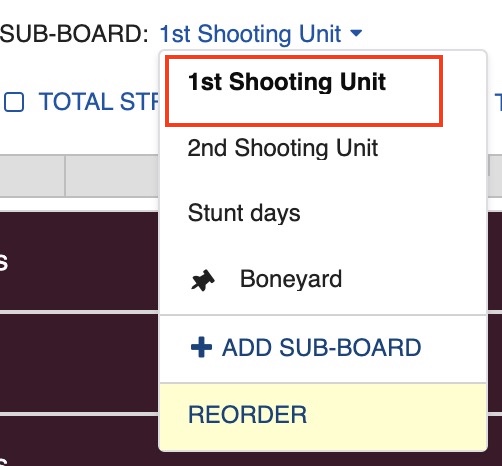
- Click the Board or Sub-Board selector in the top left where the current Board or Sub-Board name is displayed.
- Click to select the Board or Sub-Board you want or use the arrow keys. Press ENTER to select.
-
The system then switches to that Board or Sub-Board.
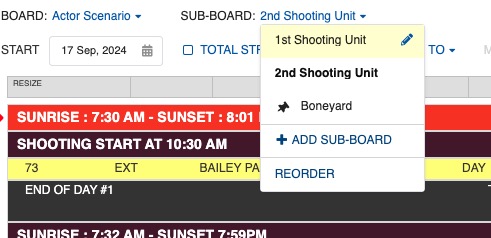
Edit Board or Sub-Board Name
To edit a Board or Sub-Board's name:
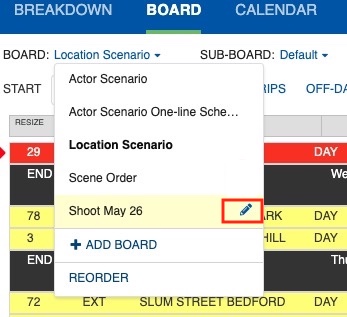
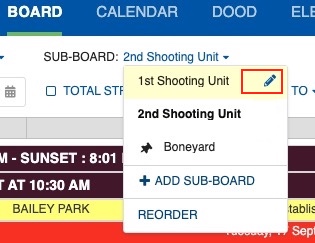
- Click the Board or Sub-Board selector in the top left.
- Hover over or use arrow keys to highlight the Board or Sub-Board you want to edit.
-
Click on the edit icon (pencil).
-
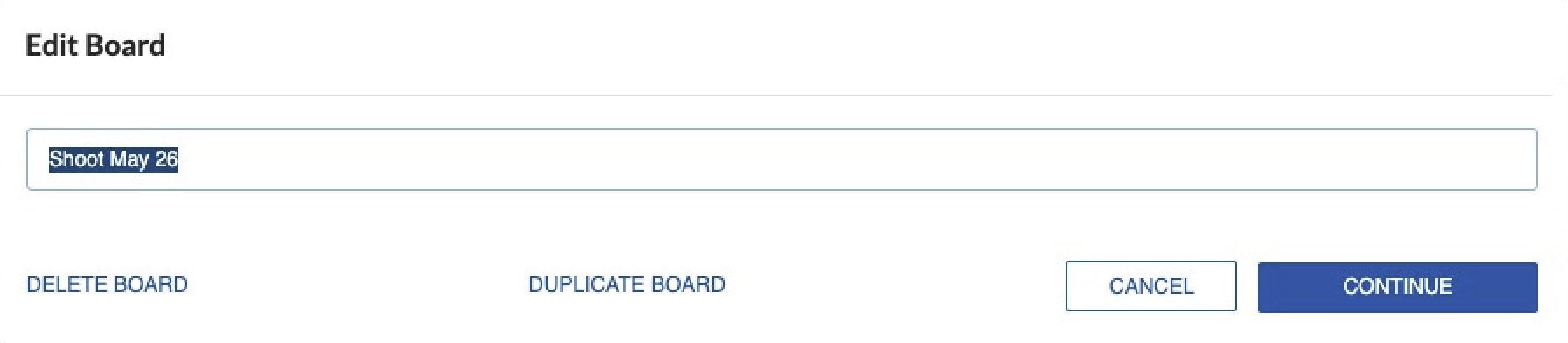
Rename your Board or Sub-Board.
Note
The Board or Sub-Board name must be unique within the Schedule.
-
Click CONTINUE or press ENTER to rename.
Duplicate a Board
To duplicate an existing Board:
- Click the Board selector in the top left where the current Board name is displayed.
- Hover over or use arrow keys to highlight the Board you want to duplicate.
-
Click on the edit icon (pencil).
-
Click on the Duplicate option.
- Your Board will duplicate.
Important
You cannot Duplicate a Sub-Board.
Delete a Board or Sub-Board
To delete an existing Board or Sub-Board:
Note
Delete is only available if your Schedule has more than one Board or Sub-Board.
- Click the Board or Sub-Board selector in the top left.
- Hover over or use arrow keys to highlight the Board or Sub-Board you want to delete.
-
Click on the edit icon (pencil).
-
Click on the Delete option.
-
A prompt displays to confirm the deletion. Click DELETE BOARD.


-
The Board or Sub-Board will delete, and you may be navigated to another Board or Sub-Board.
Important
Deleting a Board does not delete Breakdown Sheets. You are only deleting a unique arrangement of those Breakdown Sheets.
Reorder Boards and Sub-Boards
To change the order of your Boards and Sub-Boards:
- Click the Board selector in the top left.
- Click Reorder, then click the edit icon (pencil).
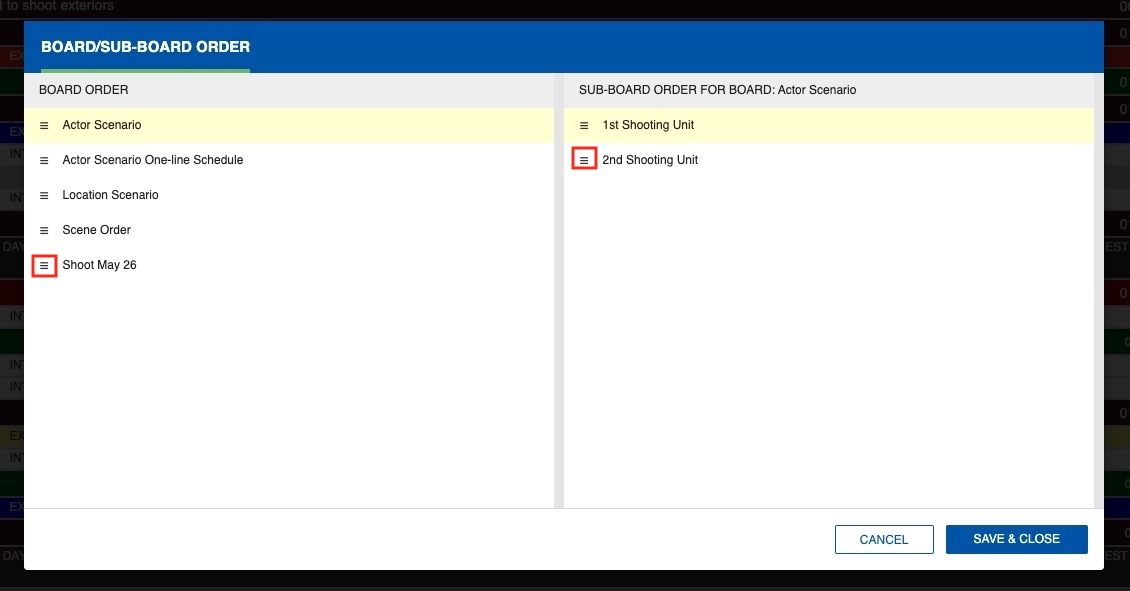
- Click the three-line icon on the left of the Board or Sub-Board you want to move and drag it to the desired position.
-
Click Save & Close.
Start Date
Each Sub-Board has a Start Date that identifies the expected first day any scheduled Strips in that Sub-Board will be worked.
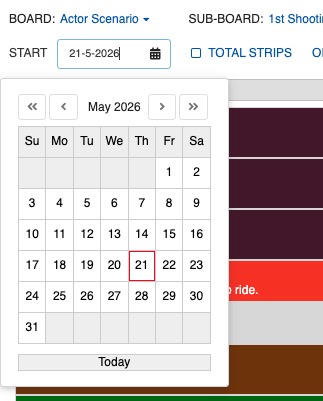
Go to Calendar for more about Start Dates.
Off Days
Off Days can be set at the Sub-Board level from within the Board tab. Click on OFF DAYS and select the days.
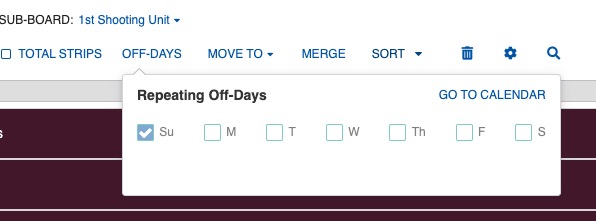
Go to Calendar for more about Off Days.
Show or Hide Strip Types
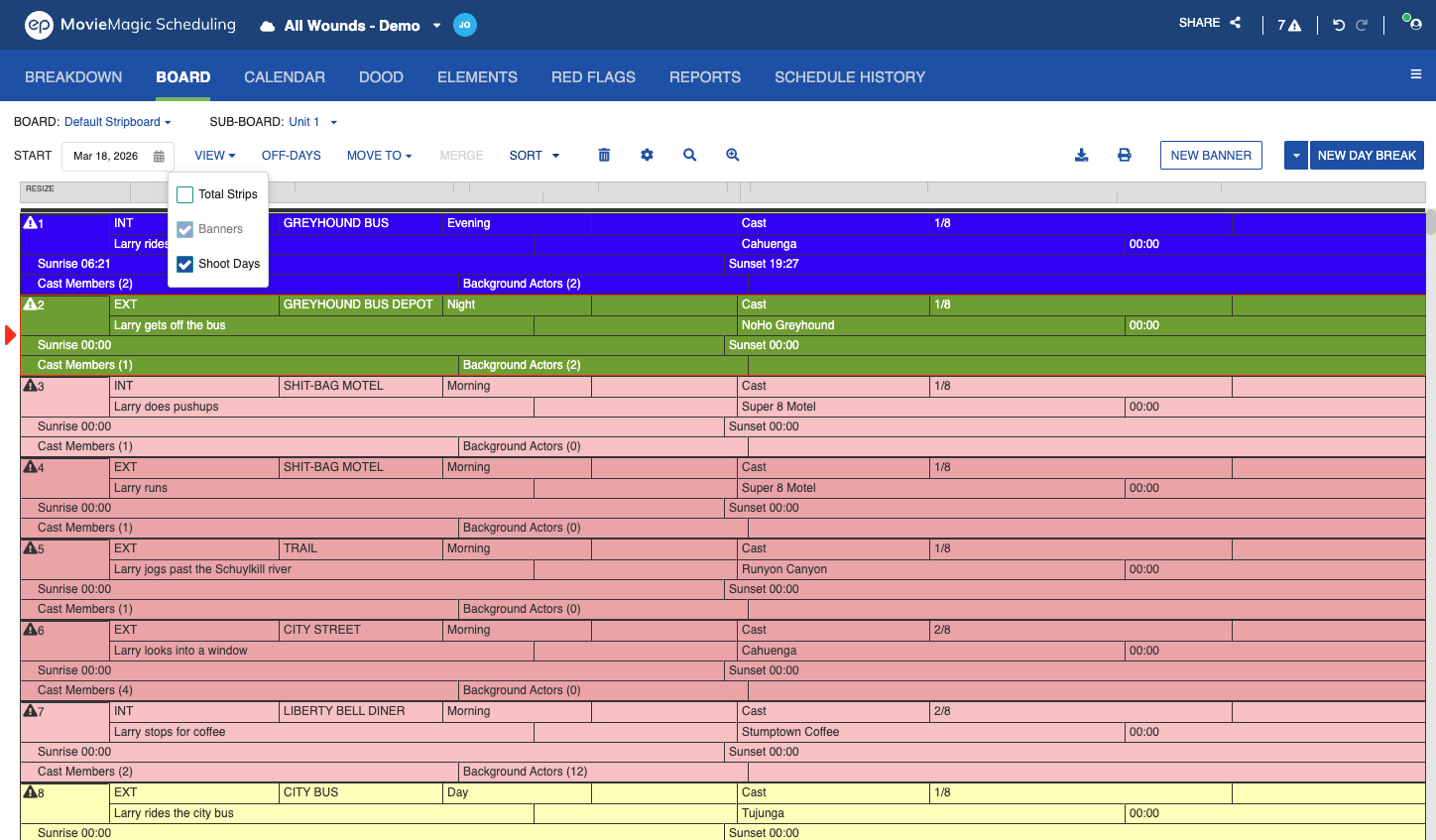
The VIEW dropdown at the top of the Board controls which Strip types are visible on the current Sub-Board. The dropdown contains three checkboxes:
- Total Strips
- Banners
- Shoot Day
All three are checked by default. Uncheck any combination to hide those Strip types from view.
Note
Your selection is schedule-specific and persists until you close the Schedule. Options gray out automatically when that Strip type is not present on the current Board.
Move Strips To
To move Strips to another Sub-Board:
- Select the Strip(s) you want to move.
- Click MOVE TO and select the target Sub-Board.
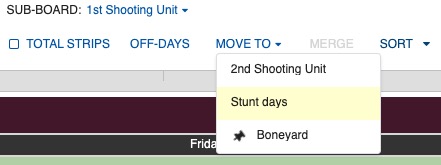
When the Sub-Board list contains more than 8 items, a scrollbar appears in the MOVE TO menu so you can navigate the full list without losing your position.
Merge Strips
To merge two or more Breakdown Sheets into a single Strip:
- Select two or more Strips.
- Click MERGE.
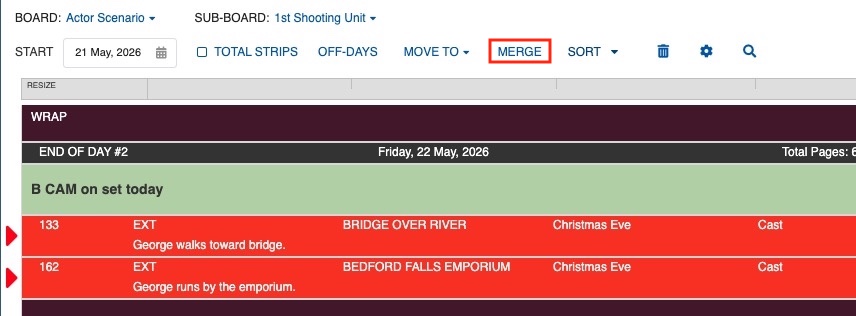
A warning window pops up. Click MERGE STRIPS to confirm.
Images
You can view images for a scene directly from the Board through the Board / Images split-screen pane.
- Open the split-screen menu (three-line icon, upper right).
- Select Board / Images.
- Select a strip. The image pane shows images attached to that strip's scene.
Add, delete, preview, and note images the same way you do on Elements.
Images also attach to Elements through the Images Tab on the Edit Element dialog. See Images for how images work across the schedule.