Managing Strips
Each Breakdown Sheet in your Schedule has a corresponding Strip, and every Strip is available in each Board.
Usually, the Strip for a given Breakdown Sheet will be added to the currently active Sub-Board of the currently active Board when it is created. It displays after the previously selected Strip or at the end of the Sub-Board. Your currently selected Strip is indicated with a highlighted border with an arrow in the left margin.
Note
Double-click any Strip to go to its Breakdown Sheet.
For Boards that are not currently active, Strips corresponding to new Breakdown Sheets will be added to the end of the Boneyard.
You can select multiple Strips by holding down CTRL (on Windows), CMD (on macOS), or SHIFT while clicking on the Strips.
Moving Strips
The most common method of moving Strips in Movie Magic Scheduling is to select one or more Strips and drag them with your mouse. Selected Strips are outlined. Your target area for where to drop the strips is marked by a line.
To move Strips you can also:
- Select the Strip(s) to move. Right-click on a selected Strip(s). Select CUT.
- Select another Strip in your current Board.
- Right-click on the selected Strip and select PASTE.
- Your cut Strip(s) will be moved below the selected Strip.
Note
You can also use the hotkeys CTRL + X on Windows or CMD + X on macOS to cut the Strips then CTRL + V on Windows or CMD + V on macOS to paste them.
When you paste Strips into an empty Sub-Board or the Boneyard, the first (top) Strip of the pasted group is focused automatically, so you do not have to scroll to find where your Strips landed.
See Right-Click Context Menu for copy-paste and insertion options, and Board for the Move To workflow across Sub-Boards.
Sorting Strips
To sort the Strips in a Sub-Board:
-
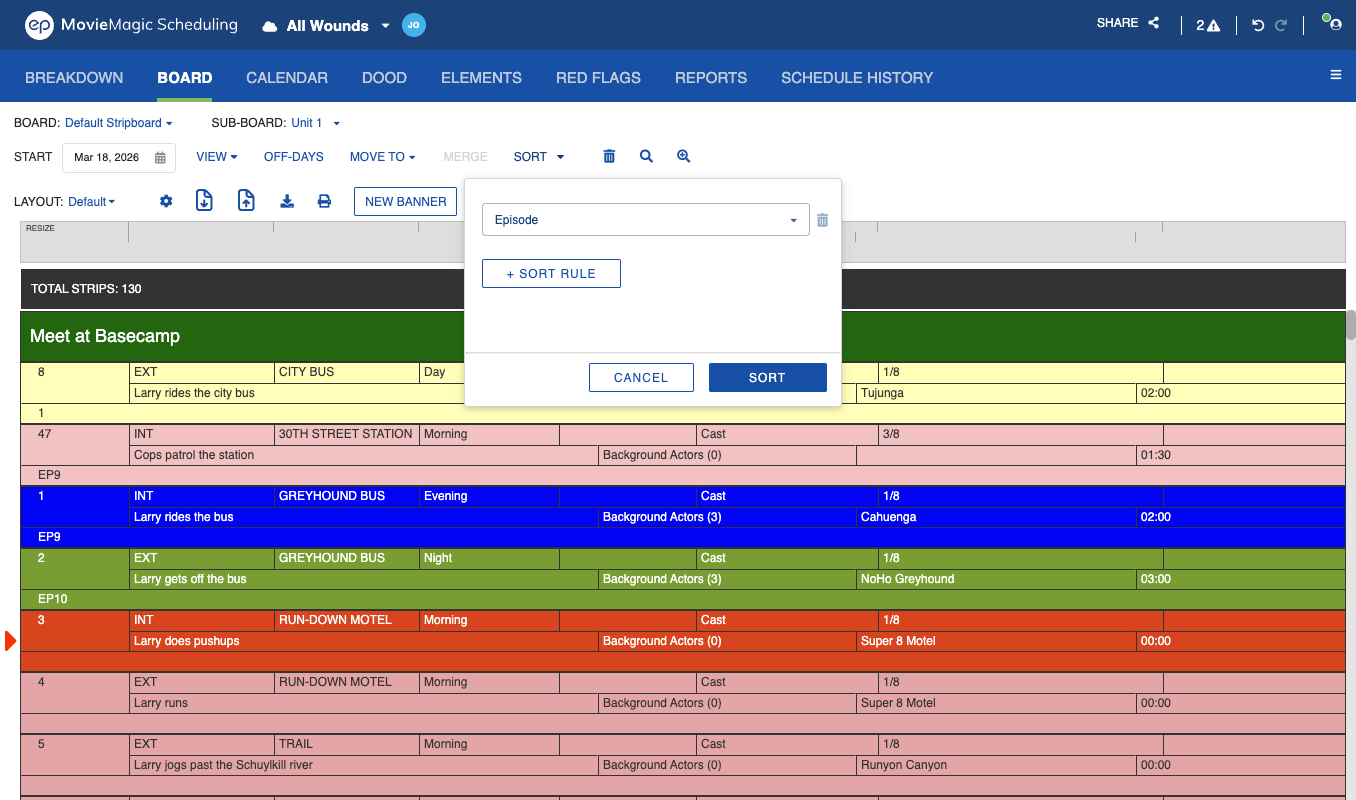
Click the SORT option in the menu at the top of the Board.

-
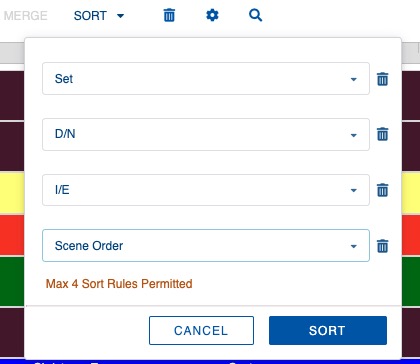
Choose a Scene Header field to sort by. Click + SORT RULE to add a secondary field. Add up to three sort rules.
-
Click SORT. The system will:
- Move all Banners to the top.
- Remove Day Breaks.
- Sort the Strips in ascending alphanumeric order based on the sorted fields.
Note
Episode is available as a sort field. It orders episodes numerically, so EP10 follows EP9, and collects Strips with no episode at the end.
Deleting Strips
To delete Strips:
-
Select the Strips you need to delete. From there, you can:
- Press DELETE or BACKSPACE on your keyboard.
- Right-click on the selected Strips and select Delete Strip(s).
- Click DELETE in the menu at the top of the Board. A warning will display confirming that you are deleting Strips and their corresponding Breakdown Sheets across all Boards in your Schedule.
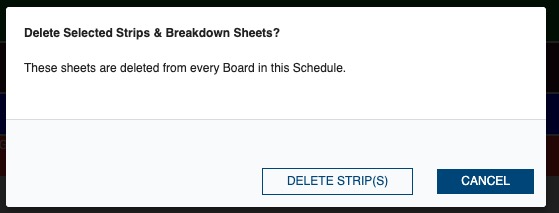
Select Delete Strip(s) to confirm.