Creating a Shared File
Create or Open a Schedule
- Launch Movie Magic Scheduling 10.
- Either create a new schedule, or open an existing schedule you want to share.
Convert a File to a Shared File
-
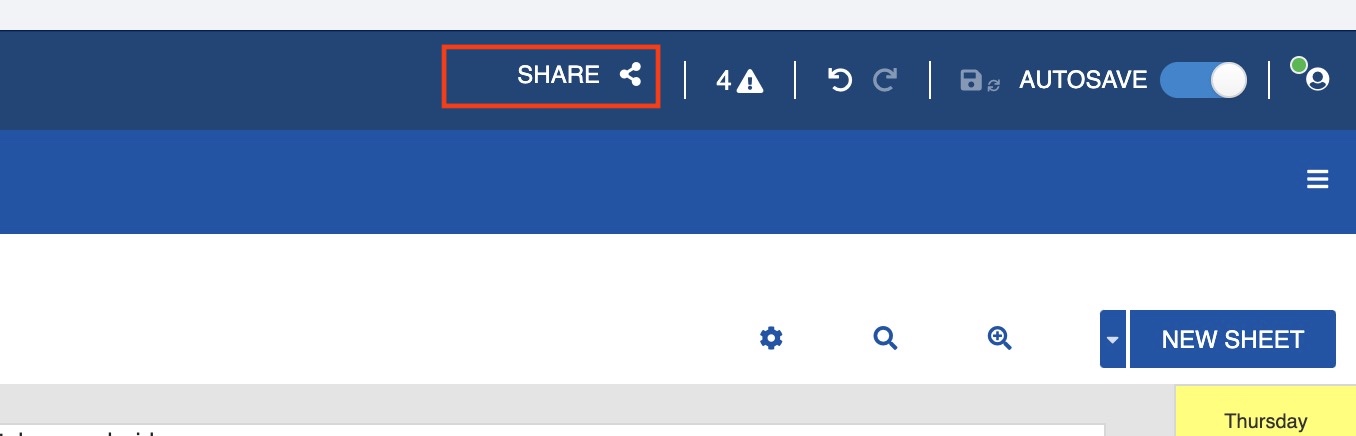
Click on the Share option on the upper right of the window.
-
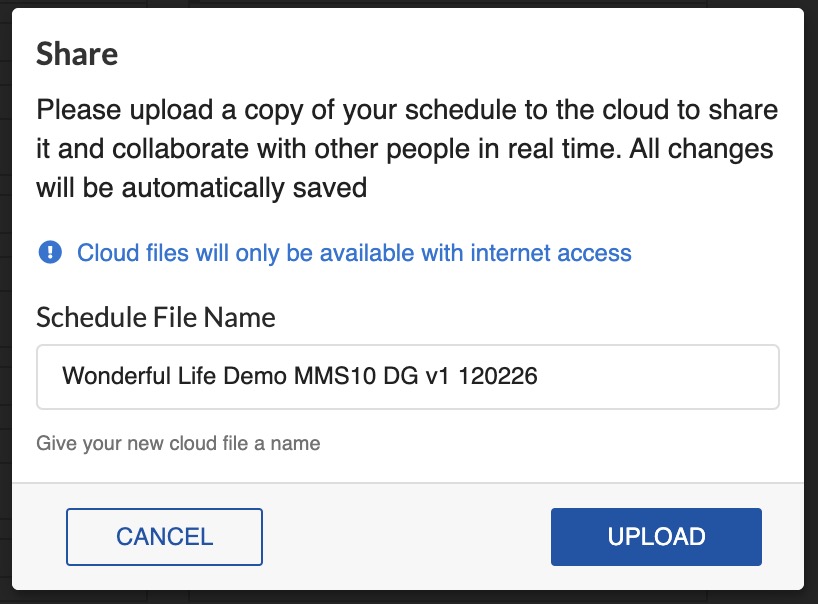
A window asks you to upload the file to EP Cloud.
-
Change the file name if needed.
- Click on Upload.
- In the window that pops up, enter the email address of the collaborator you wish to share the file with.
- Select if they can Edit the file or View the file.
- Click on Invite.
-
Click on Done when you are finished.
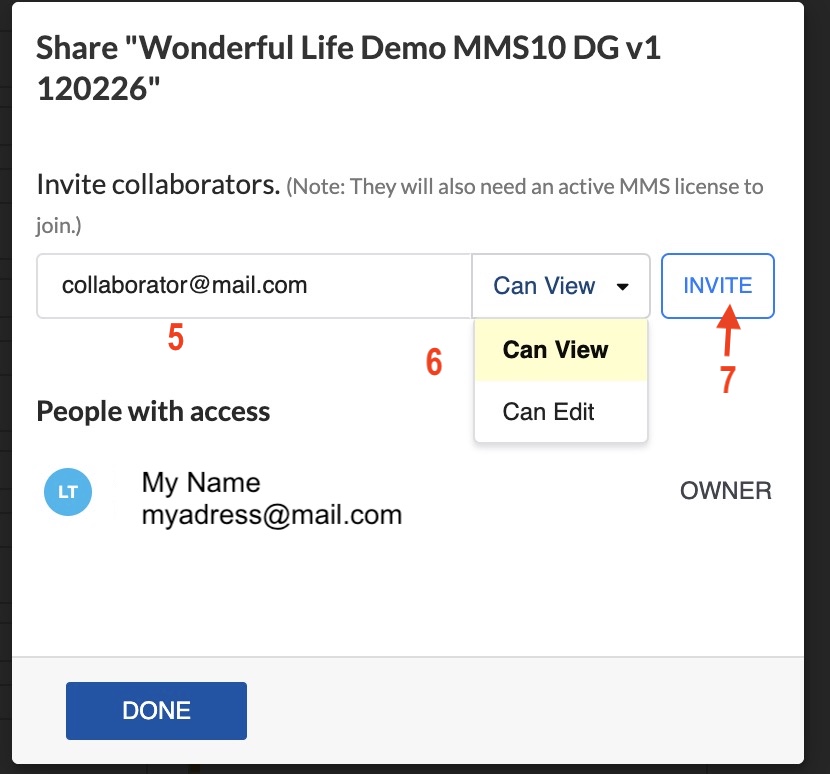
The schedule is now a Shared File. The collaborator will receive an email notifying them that a file has been shared with them.
Note
The collaborator must have an Entertainment Partners account and Movie Magic Scheduling 10 activated on their computer.