Schedule Templates
A schedule template carries your setup, categories, custom fields, and report and strip designs into a new schedule, so you do not repeat that setup work on every project. Templates save as local .MMST files you can share by email.
Save as Template
- Open the schedule whose setup you want to reuse.
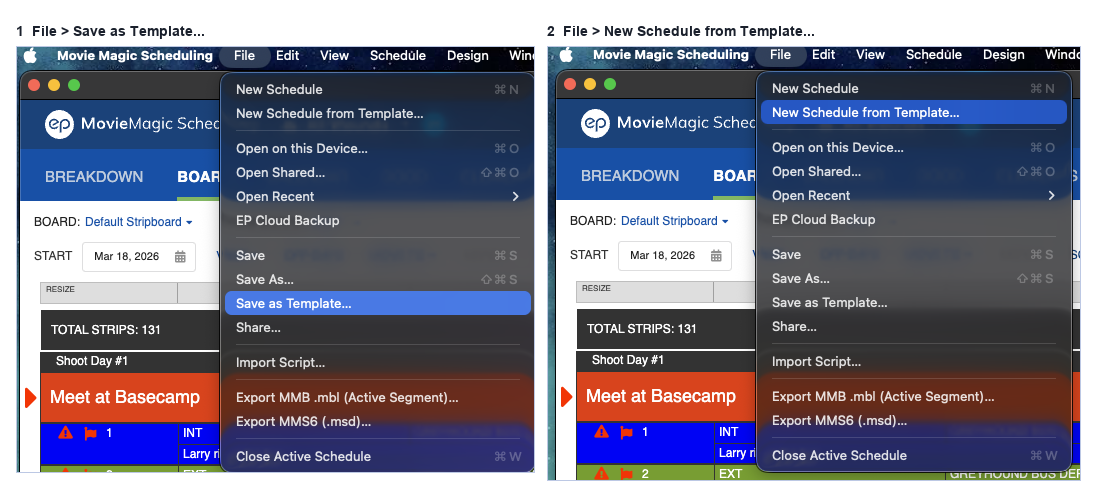
- Go to the File menu, then Save As > Save as Template.
- Name the template and save. It writes an .MMST file.
New from Template
- Go to the File menu, then New Schedule > New from Template.
- Select your .MMST file. The new-schedule flow opens with your template in place of the default.
You can also double-click an .MMST file to open it as a new schedule.
What a Template Carries
A template keeps your full category list, field and custom-field setup, all report and strip designs, the calendar strip design, your saved Red Flag types, and the Day/Night and Interior/Exterior elements with their colors.
A template clears the schedule-specific data: scenes, strips, boards, locations, sets, episodes, and Red Flags.