Advanced Find & Replace
Advanced Find & Replace lets you search for specific elements in your schedule (scenes, characters, locations, or other fields) and replace them across your project in bulk. The tool opens in a split-screen view so you can see the effect of your changes on the Board or Breakdown as you work.
To Access
You can open Advanced Find & Replace two ways:
- From the Board or Breakdown screen, click the Advanced Search icon (magnifying glass with a plus sign).
- From any screen, click the three-line menu icon in the upper-right and select Advanced Find & Replace.
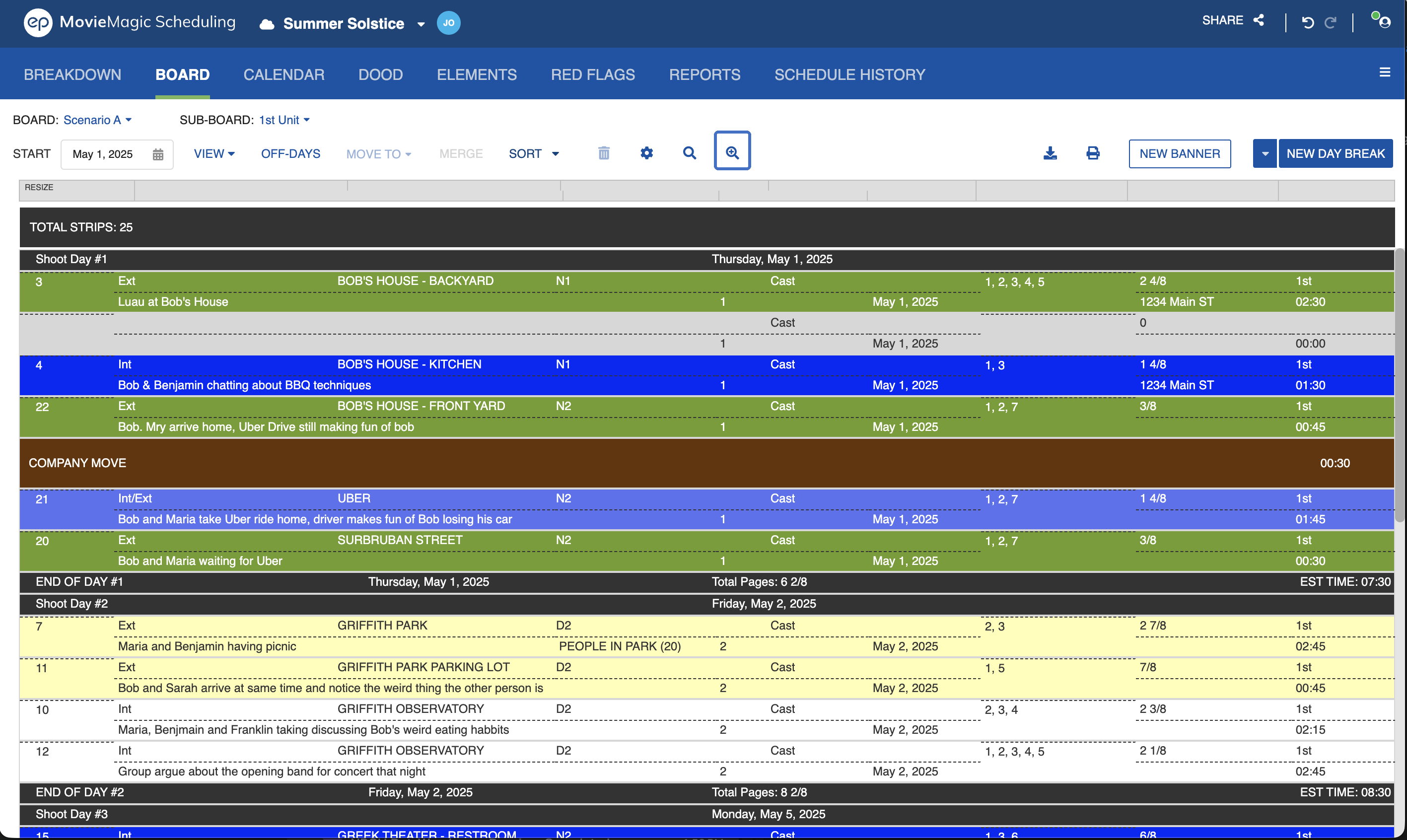
When you open Advanced Find & Replace, the screen switches to a split-screen view:
- Launching from the Board opens a
Board || F&Rsplit. - Launching from any other screen opens a
Breakdown || F&Rsplit.
The left panel displays the Breakdown Sheet or the active Board. The right panel displays the Advanced Find & Replace options.
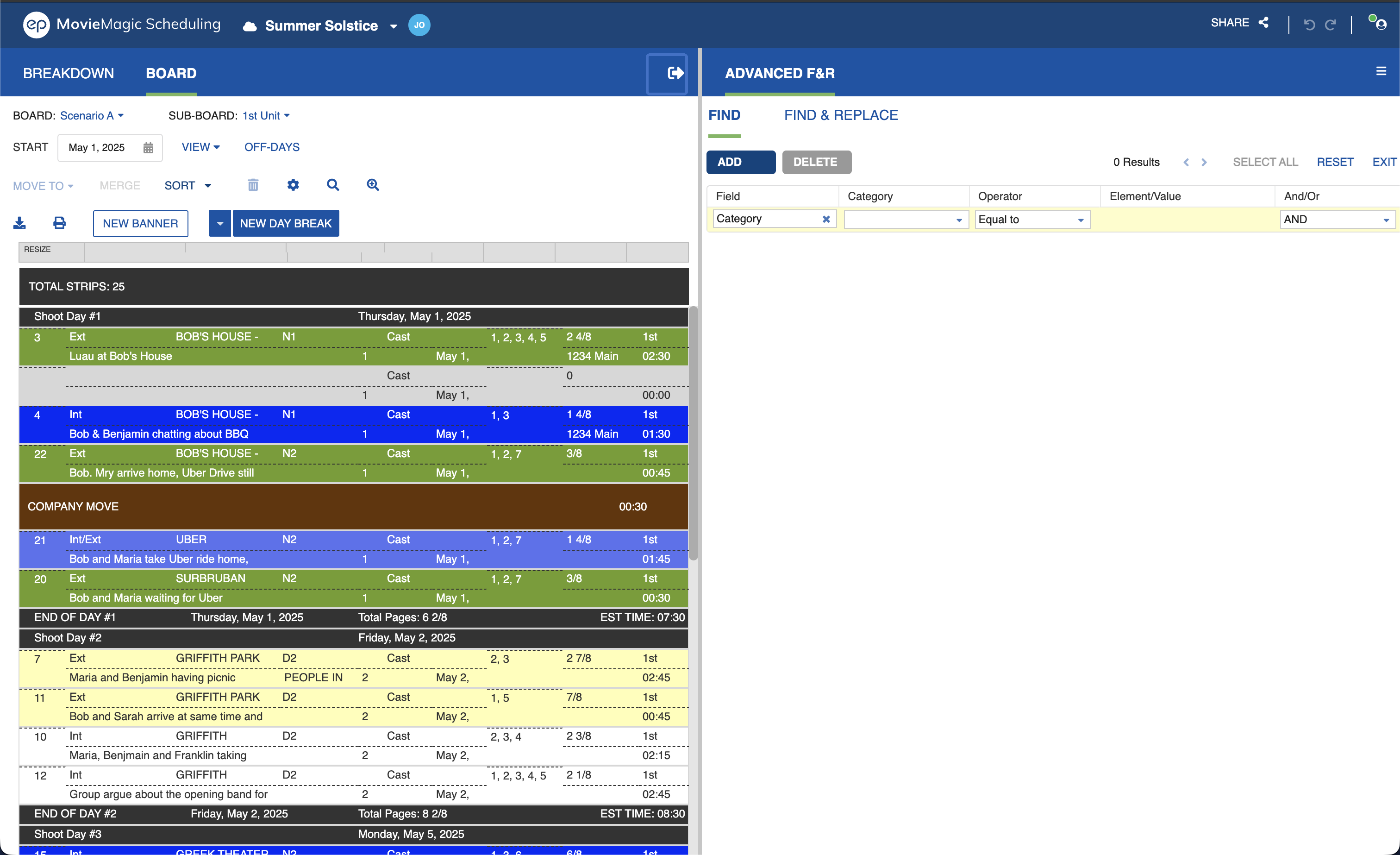
Find
In the left panel, click on the Board tab to view the Board. On the right panel, select the Find tab.
Fill in the fields for your search:
- Fields: Category, synopsis, set, location, D/N, Episode, Unit.
- Operator: Equal to or Not equal to. On Set and Location, the list also offers Starts With and Contains.
- Element/Value: Displays the elements of the selected field or category.
- And/Or: Refine your search with multiple criteria.
Note
Select All will allow you to select a strip as long as it contains any value.
Note
On Set and Location, Starts With and Contains work the way they always have on Synopsis and Comments, so part of a name finds every matching strip. Capitalisation does not affect the result. A match on any one of a strip's sets returns the strip.
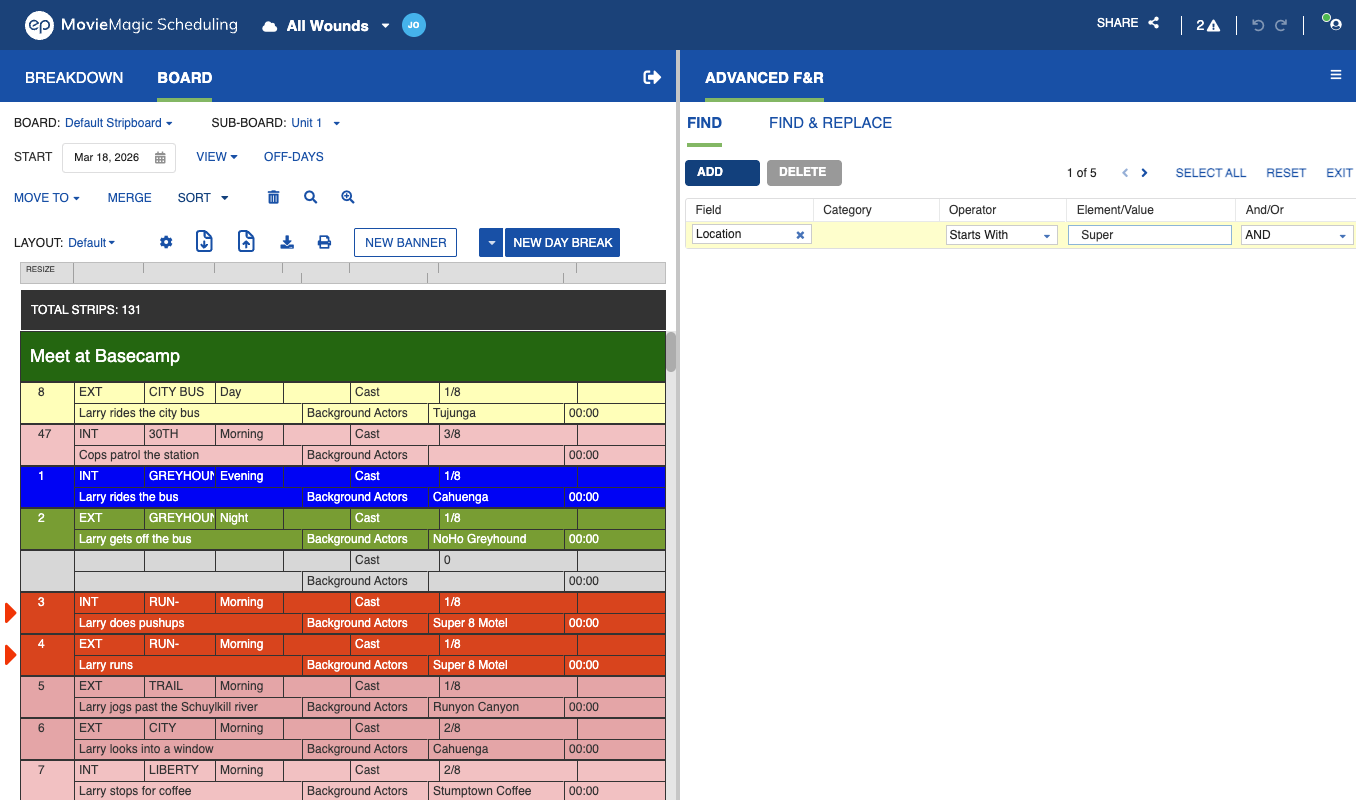
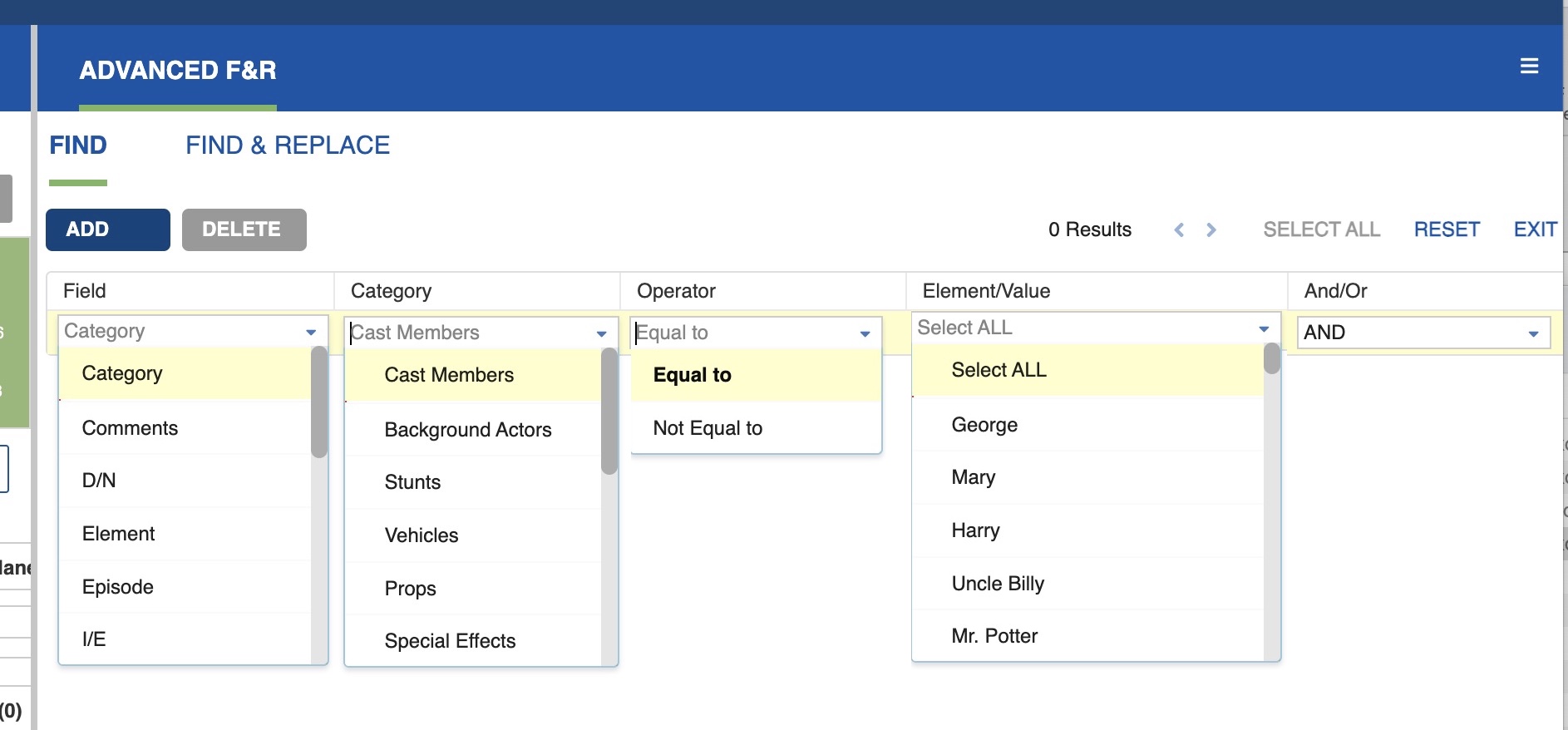
As you enter your search options, matching strips will be shown in red on the left panel.
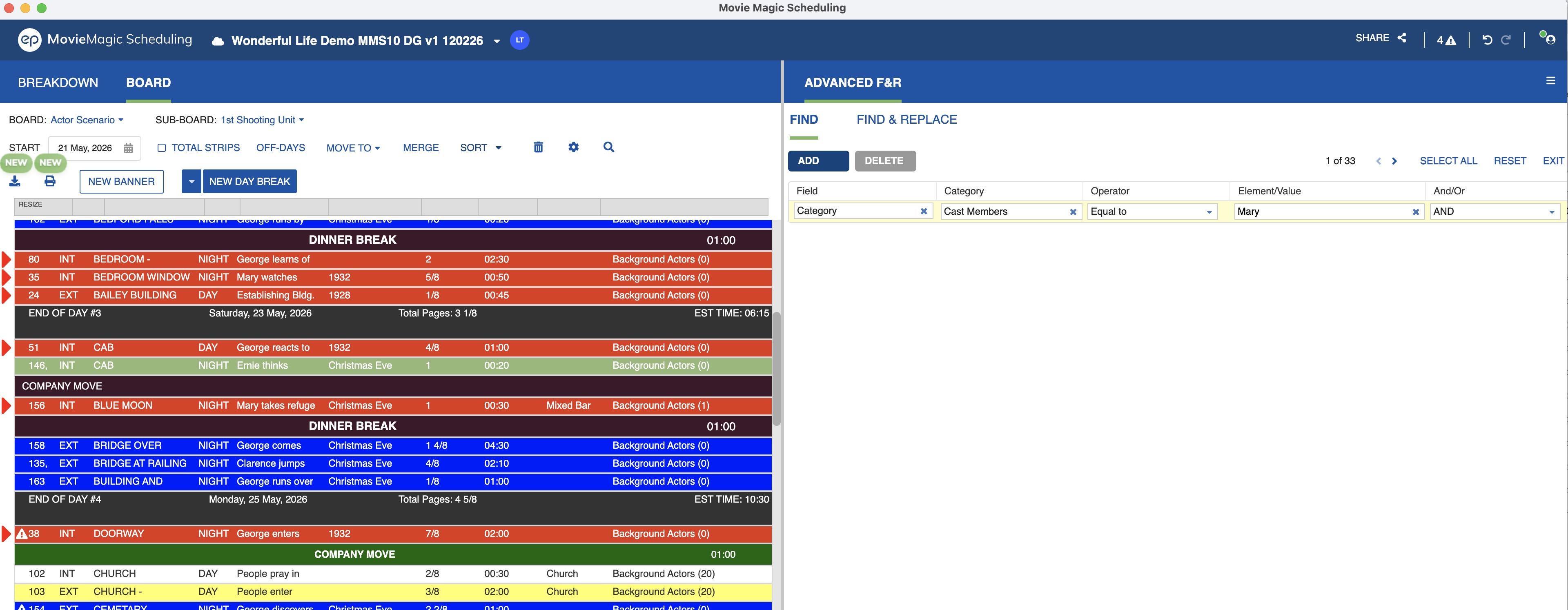
To refine your search further, click ADD and fill in additional criteria using the AND/OR operators.

Find & Replace
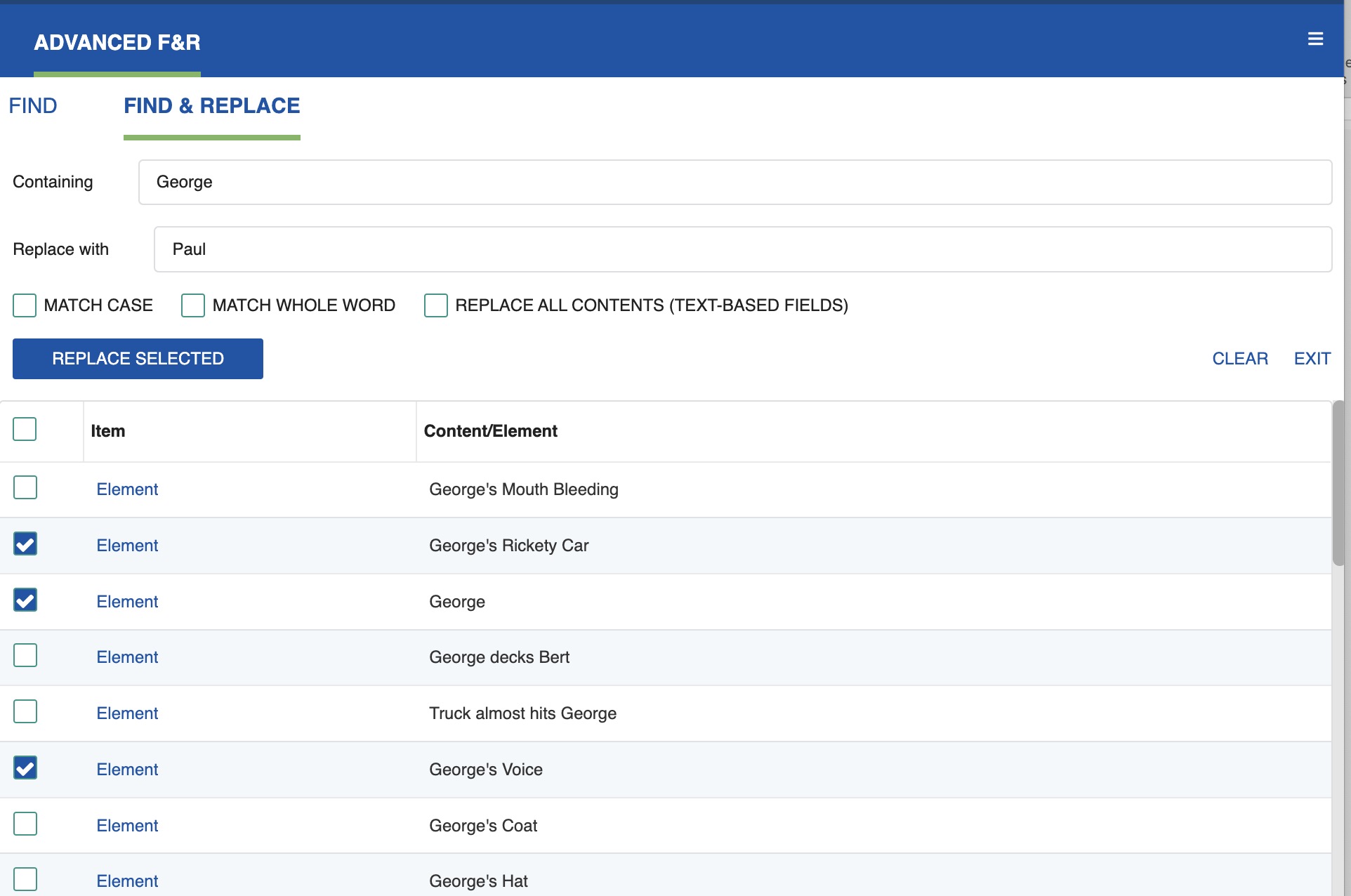
- Click the Find & Replace tab on the right panel.
- In the Containing field, type the word you want to find.
- In the Replace With field, type the replacement word.
- In the lower part of the window, select the categories you want to change.
- Click Replace Selected.
Note
The Find/Replace option supports case-sensitive or case-insensitive replacements.
Blank Replace Behavior
When the Replace With field is left blank, the result depends on the field type being replaced:
- Non-text fields (Elements, I/E, D/N, and other linked fields): the field is unlinked from the Breakdown Sheet instead of being set to a blank value. This avoids leaving broken blank values on the sheet.
- Text fields: the field becomes blank as expected.
- Category names: if a blank replace would clear a Category name, a warning appears with Cancel and Continue options. Click Continue to execute the rest of the replacements while skipping the Category.
Drag and Drop Across the Split
In split-screen views, Strips can be dragged across panels:
- When the Calendar || Board split is active, Strips can be dragged from the Board to Calendar cells.
- Strips can be dropped into empty Sub-Boards or the Boneyard directly from split-screen views. Earlier releases required using Move To for this.
To Exit Advanced Find & Replace
You can return to single-screen view two ways:
- Click the Collapse icon on the left pane. The left pane becomes the landing screen.
- Click the three-line menu icon in the upper-right and select Single Screen Mode.
Note
The Collapse icon is available in any split-screen layout in MMS, not only Advanced Find & Replace. The same one-click return to single-screen applies wherever you are working in a split view.