Opening a Shared File
Opening a Shared File (Other Users)
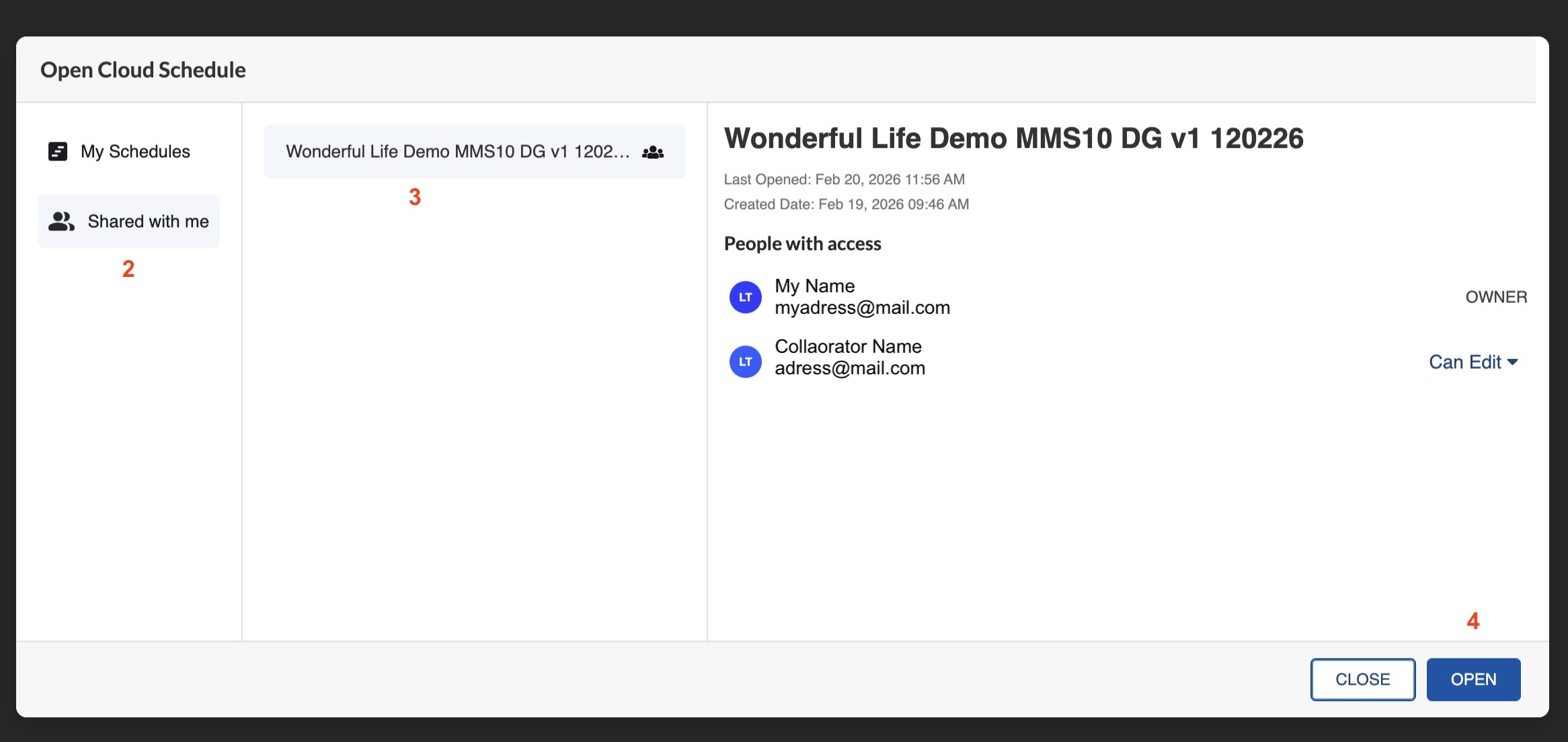
- From the Home window, select Open Shared. Or go to File > Open Shared (CMD + SHIFT + O).
- On the left, select Shared With Me.
- Select the file you want to open.
-
Click on Open.
Opening a Shared File (Owner)
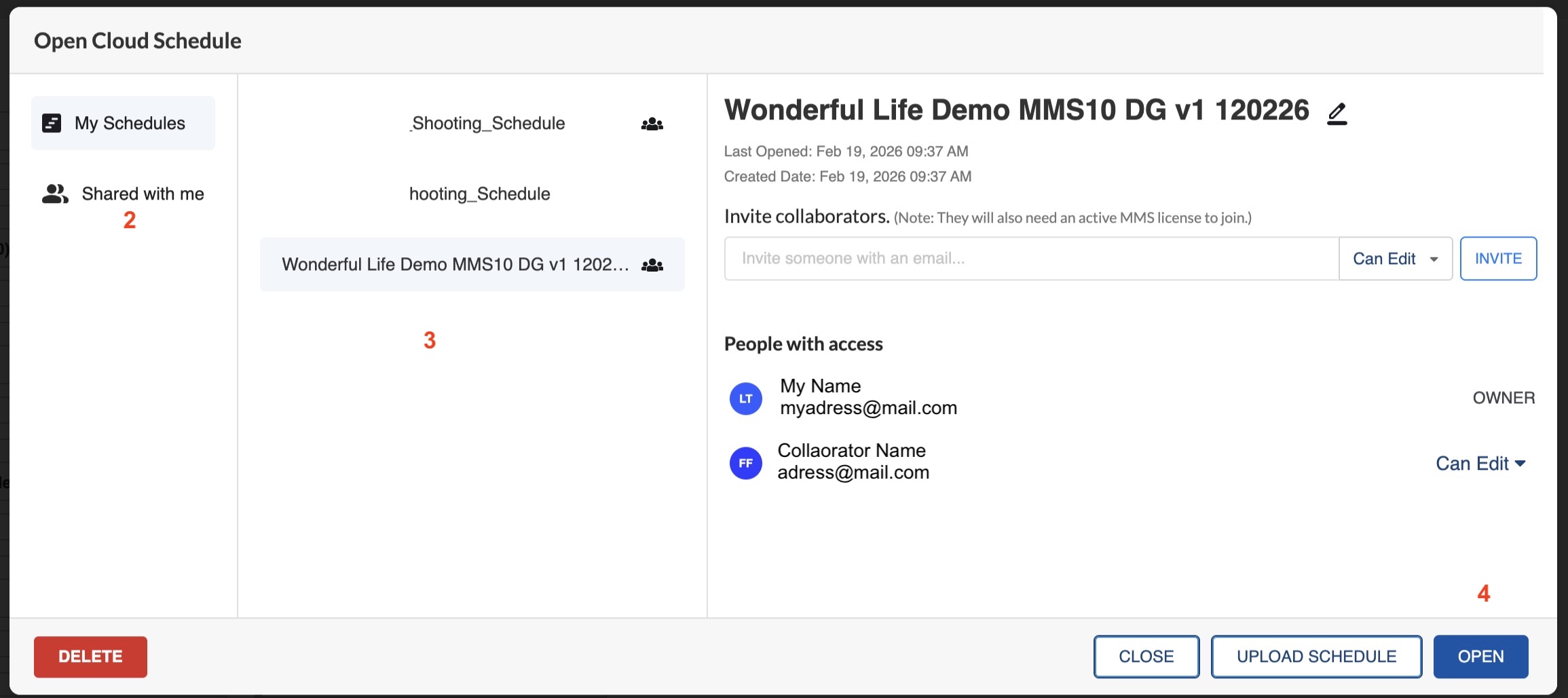
- From the Home window, select Open Shared. Or go to File > Open Shared (CMD + SHIFT + O).
- On the left, select My Schedule.
- Select the file you want to open.
-
Click on Open.
Note
From the Shared File window, you can add Collaborators, change authorization, or delete a schedule from the shared section.
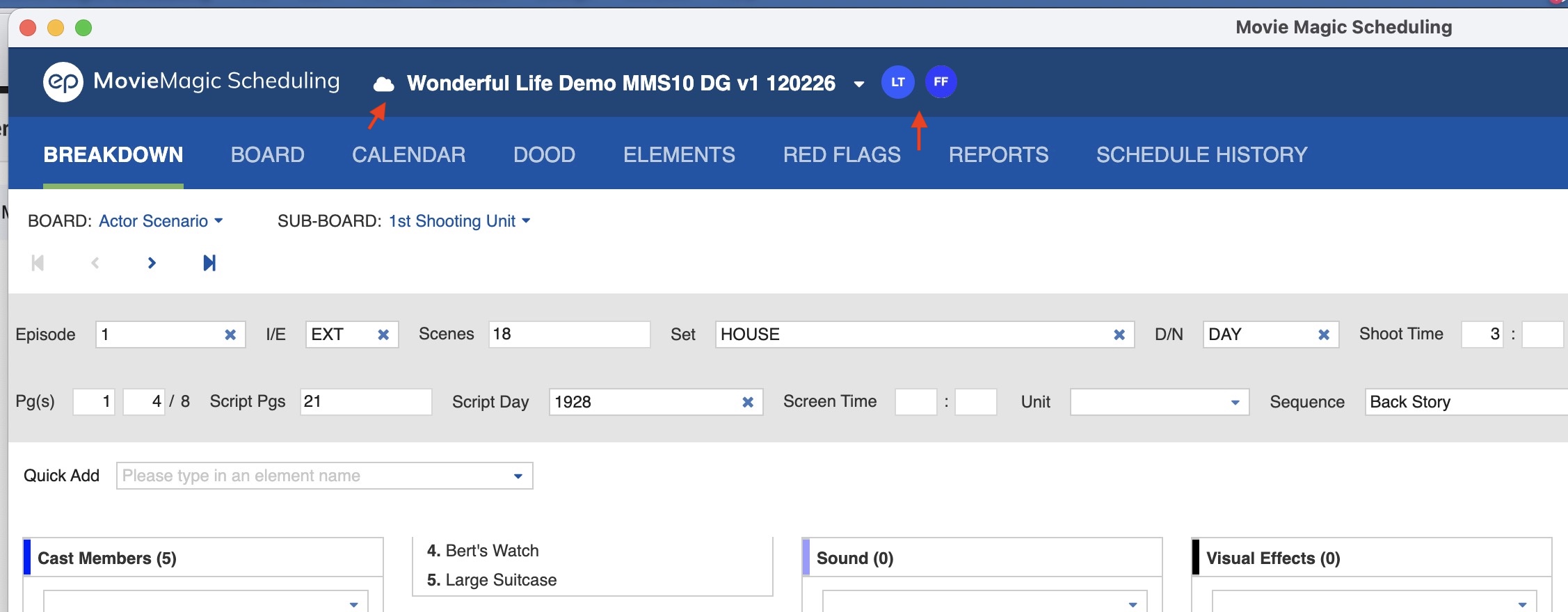
On top of the screen:
- The icon of the file is a Cloud.
- You can see who is connected to the Shared File.
All actions performed by a collaborator with editing authorization will be visible immediately as they are made.
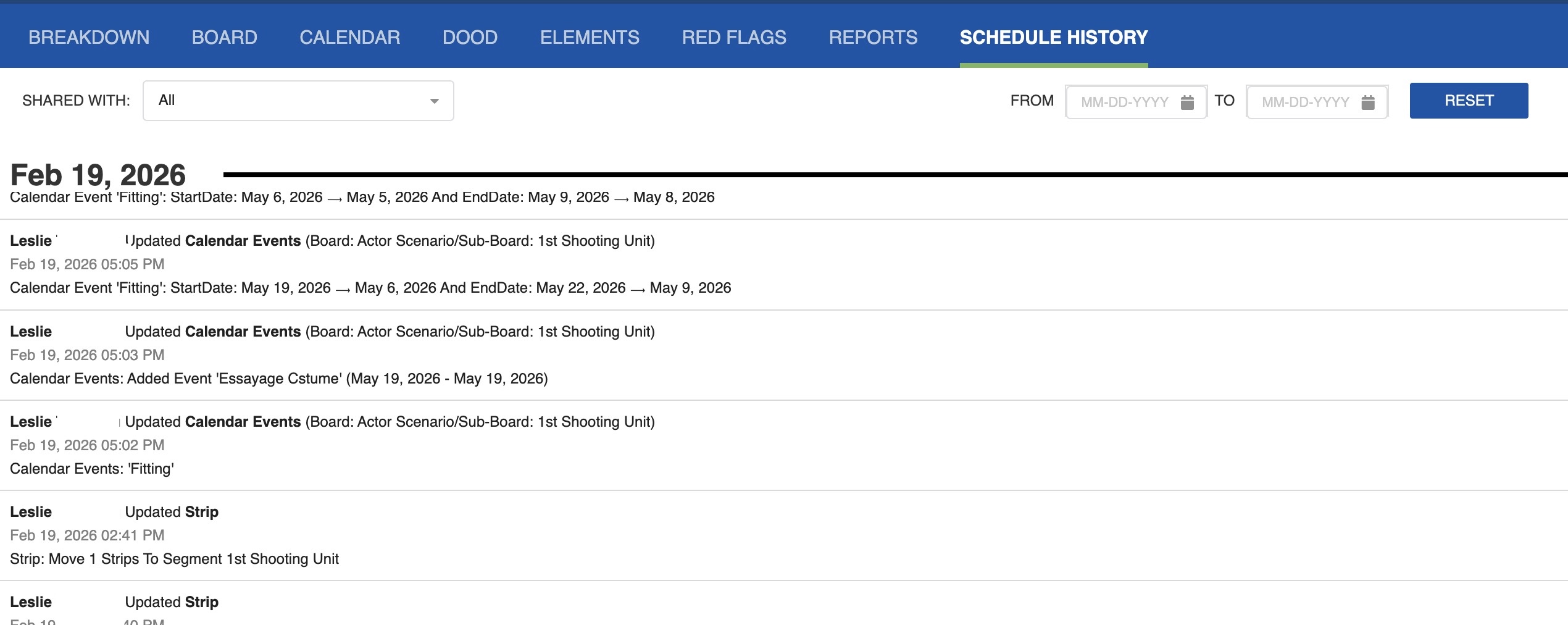
The owner of the shared file will have a new tab called Schedule History, where they can see all changes made to the file.