Element Red Flags
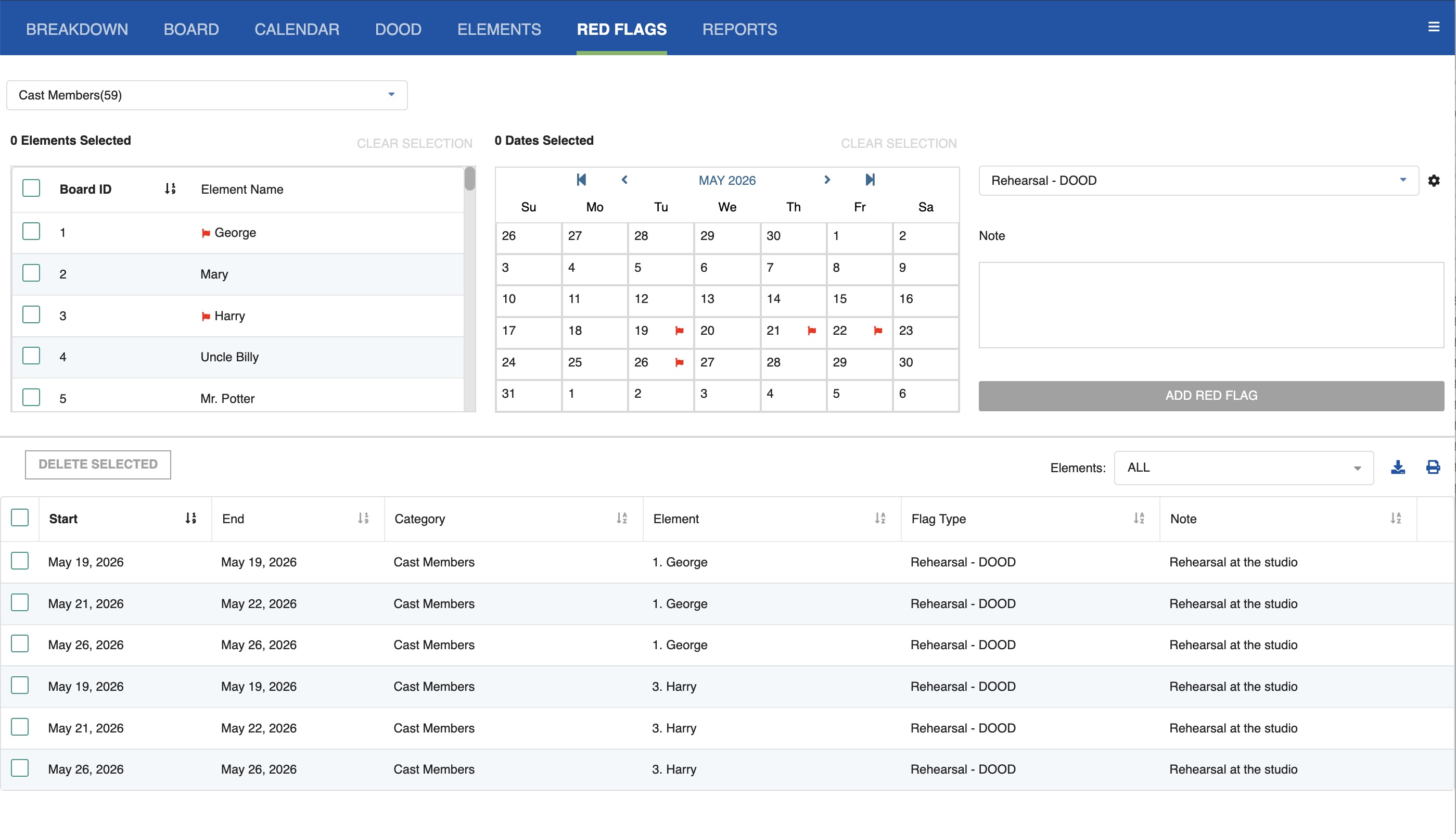
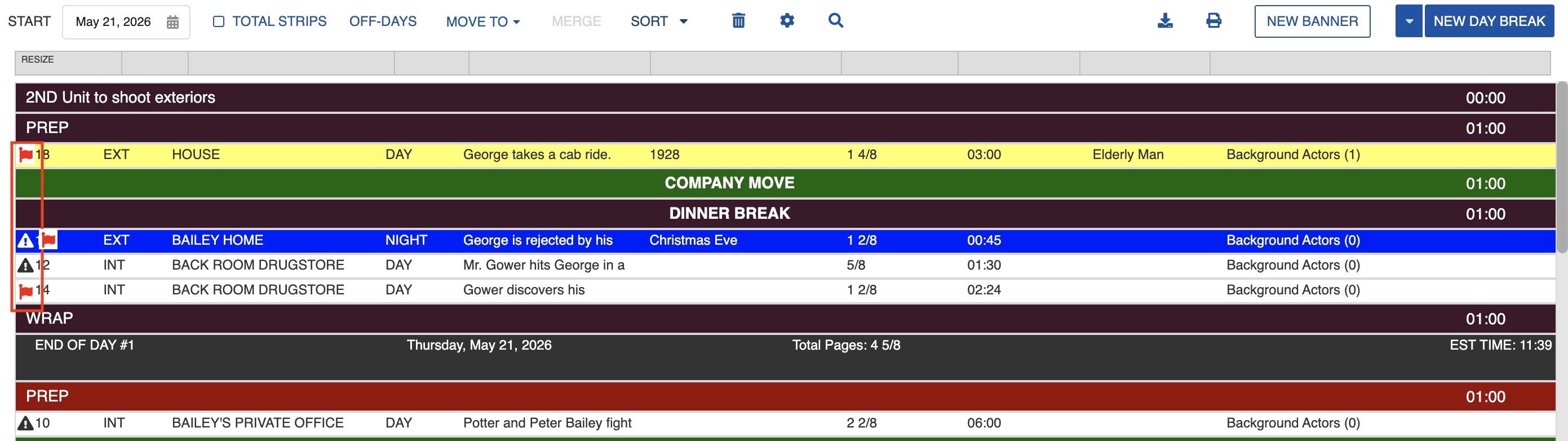
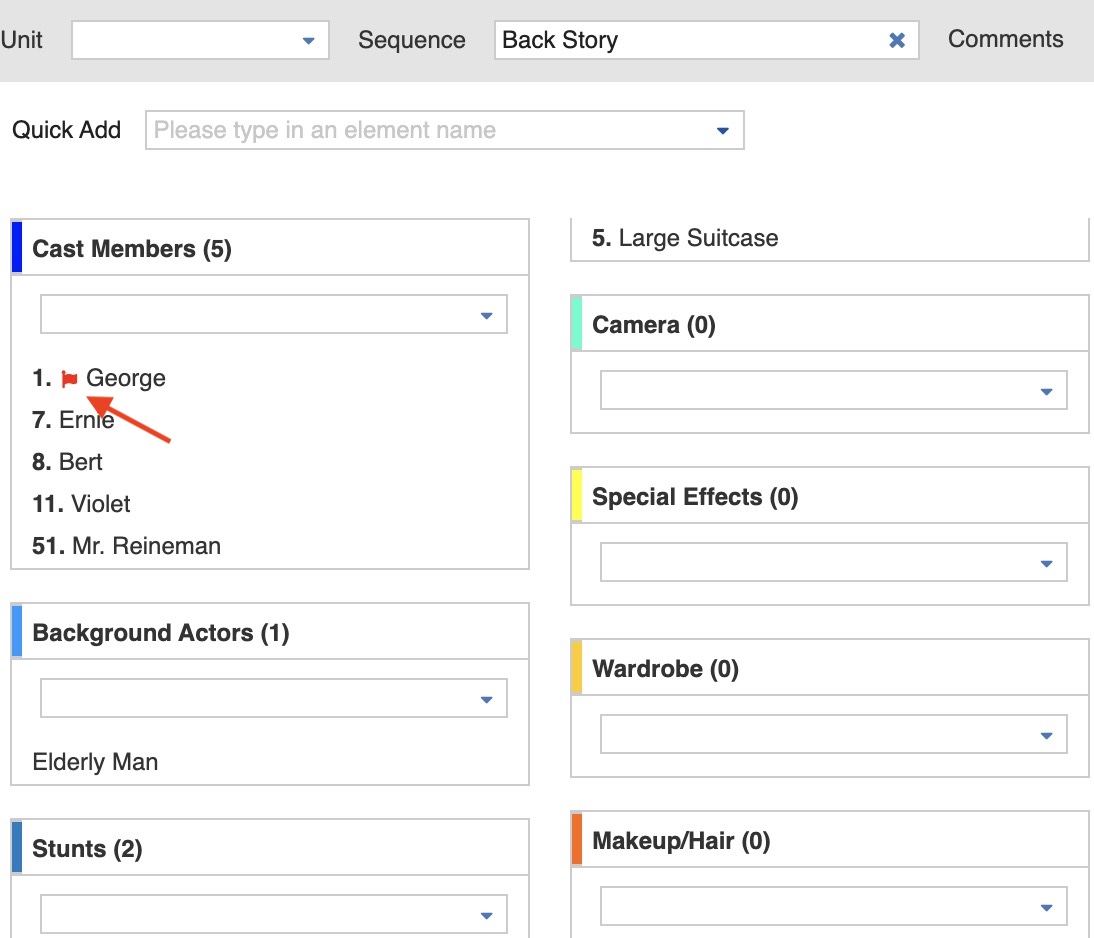
Element Red Flags are assigned to specific elements on specific dates in the Calendar. Each time that element is scheduled on a date with a Red Flag, the system displays a warning in the Board and the Breakdown Sheet.
Adding a Red Flag to the Calendar
Note
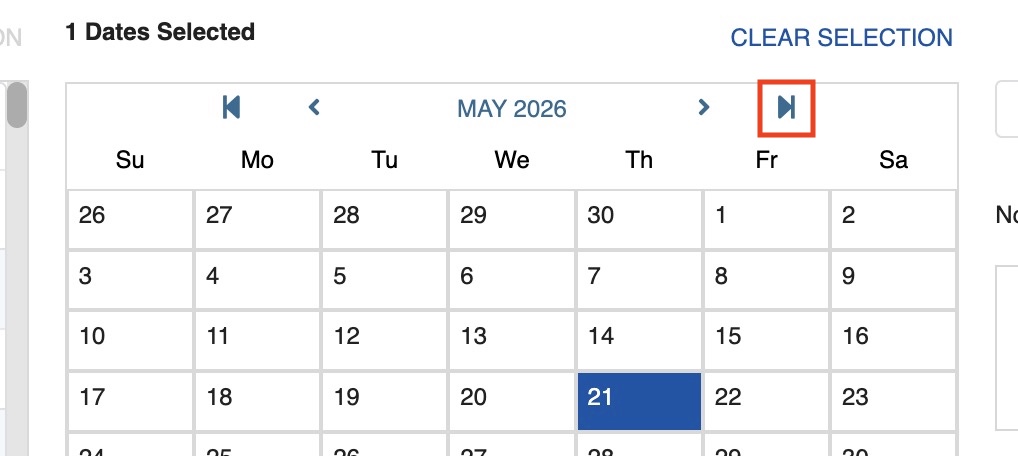
To go to the Start Date of your active Sub-Board, click the double arrow on the right of the calendar part.
-
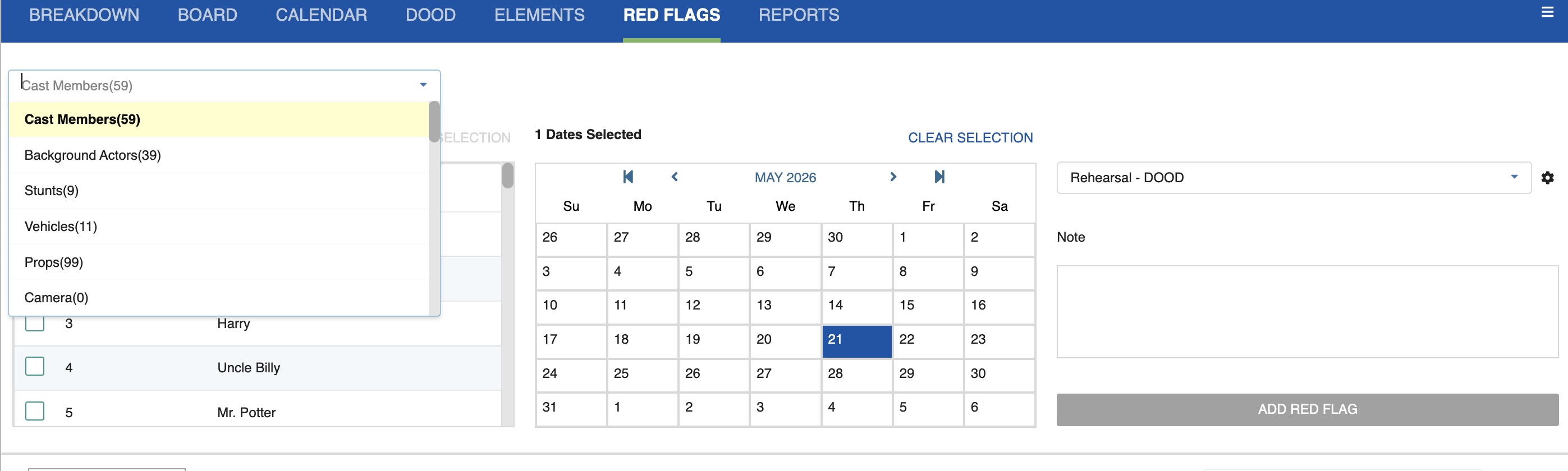
On the upper left, select the Category the element belongs to.
-
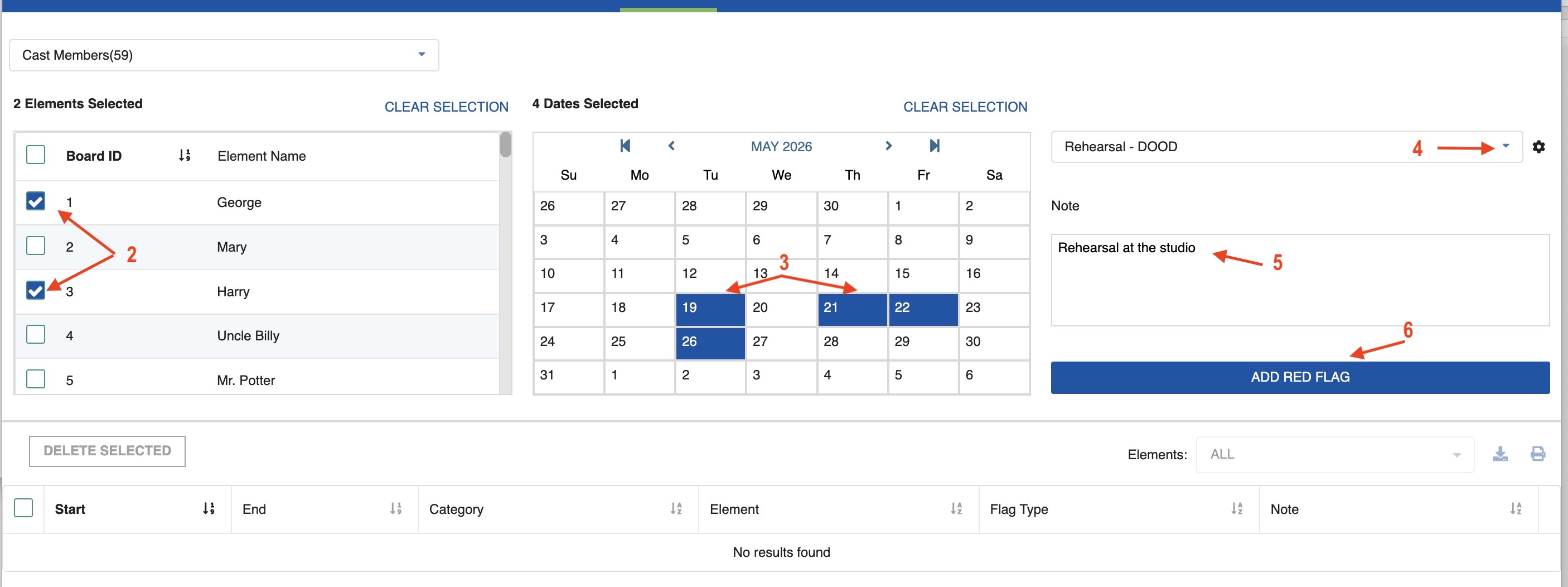
Select the element or elements for which you wish to assign a Red Flag Event.
- Select the date or dates for the Red Flag warning.
- On the upper right, select the Red Flag warning type.
- Add a note if needed.
-
Click Add Red Flag.
Delete an Element Red Flag
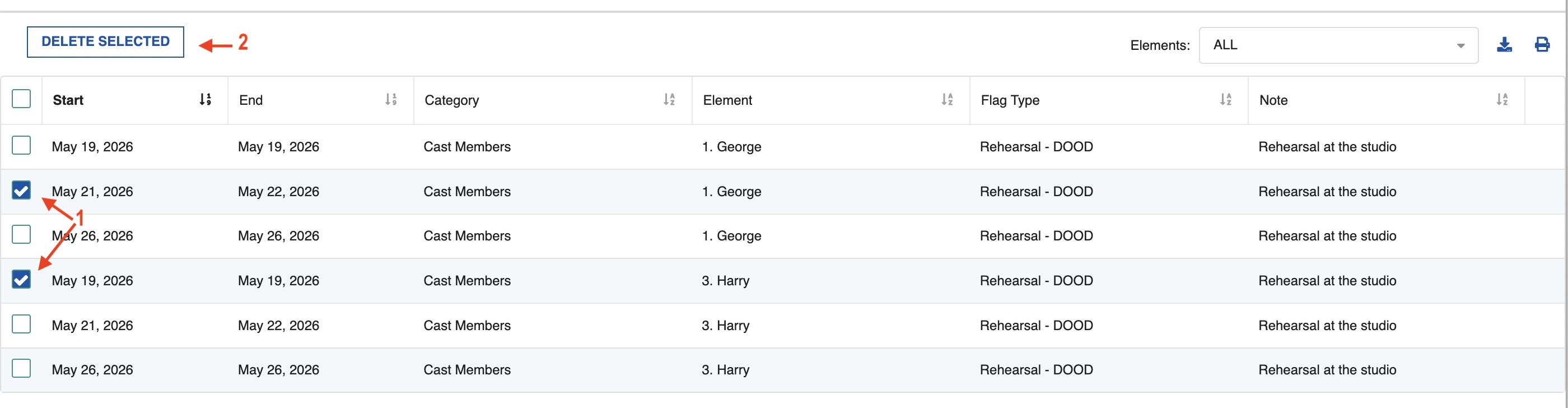
- Select the element for which you wish to delete the Red Flag warning.
-
Click Delete Selected.
Edit an Element Red Flag
-
Select the element you want to modify and click the edit icon (pencil).

-
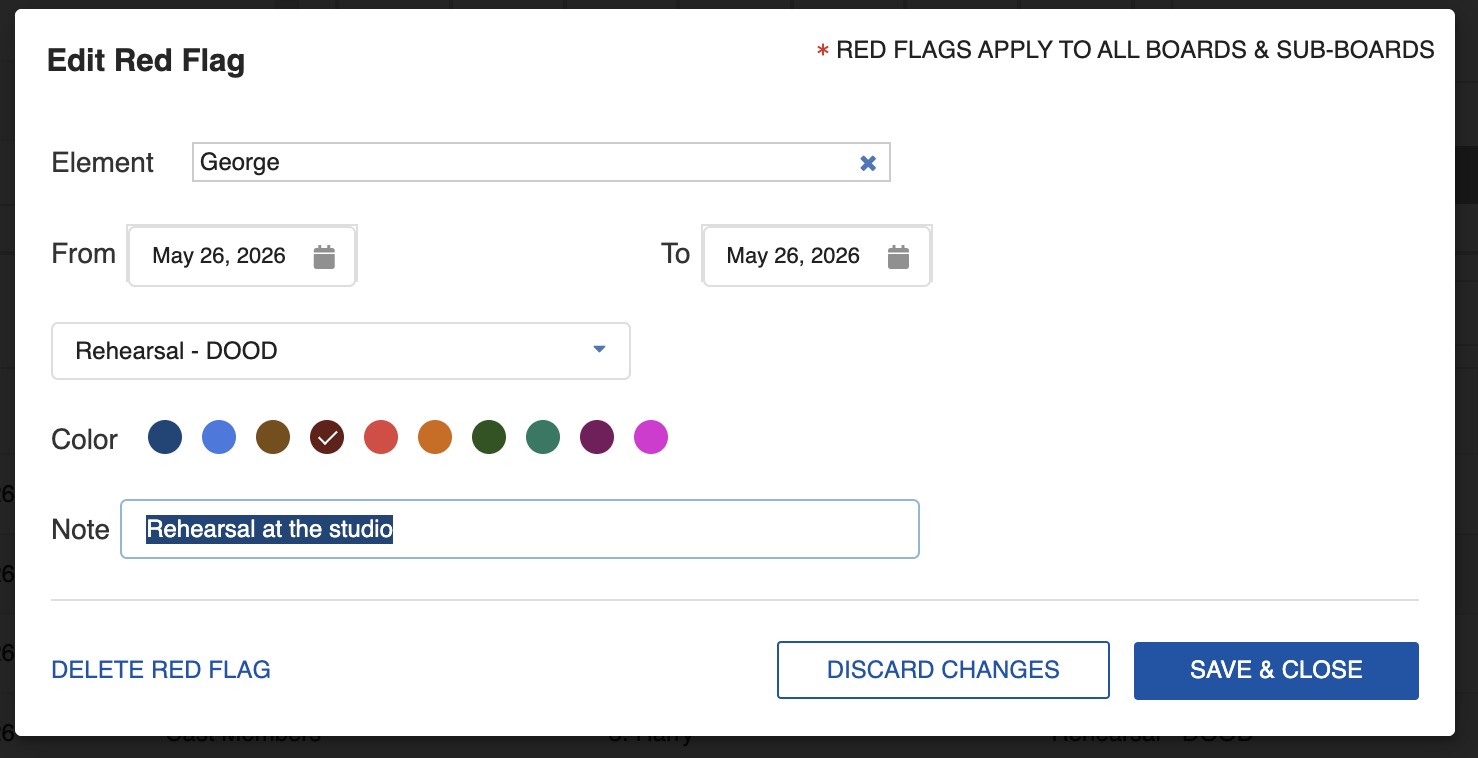
Edit the Red Flag Warning.
-
Click Save & Close.
Note
You can choose a color for each Red Flag Warning. This color will appear in the Calendar tab window.
Filter Element Red Flags
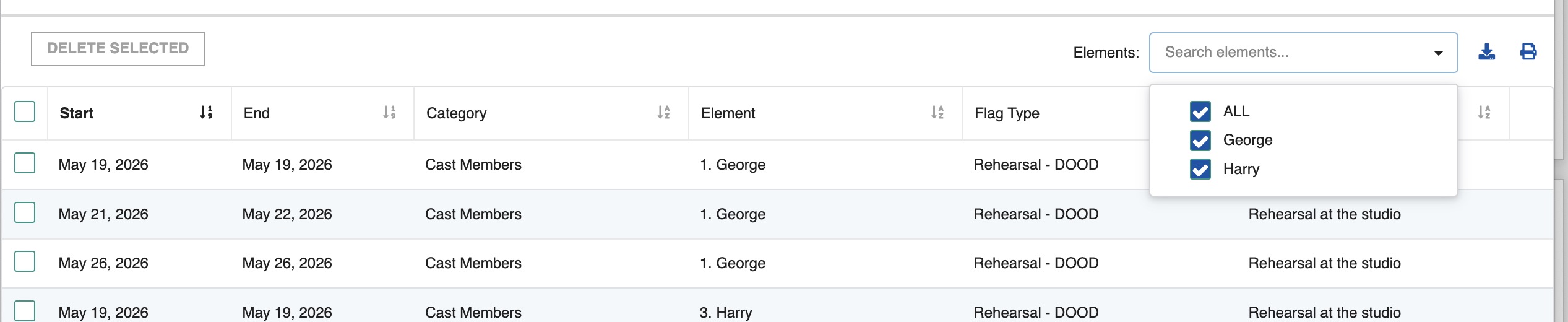
If you have many Red Flags, filter by a specific element:
- On the right corner of the bottom window, click Elements.
-
Select the Element or Elements for which you want to see the Red Flag events.
Exporting Element Red Flags
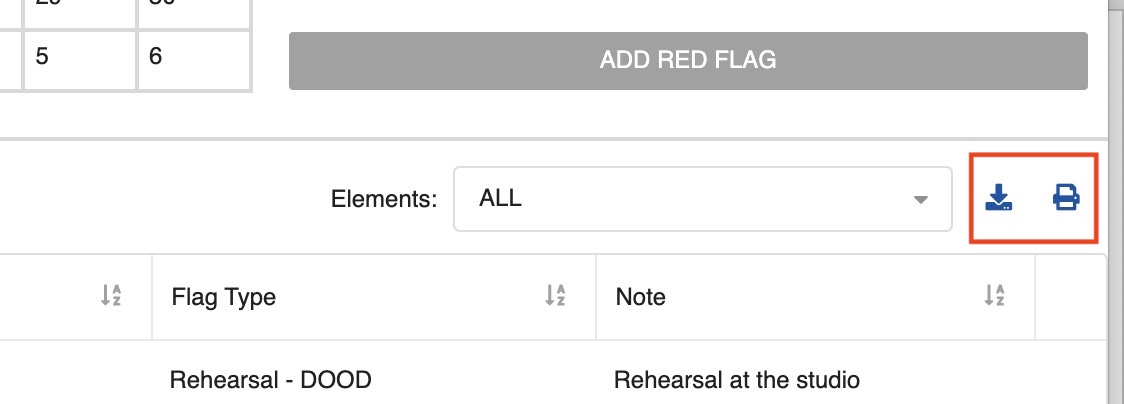
You can export to PDF or print the Element Red Flag view.
- If needed, apply a filter first to limit the export to a specific element.
-
Click the Export or Print icon.