One-line Vertical
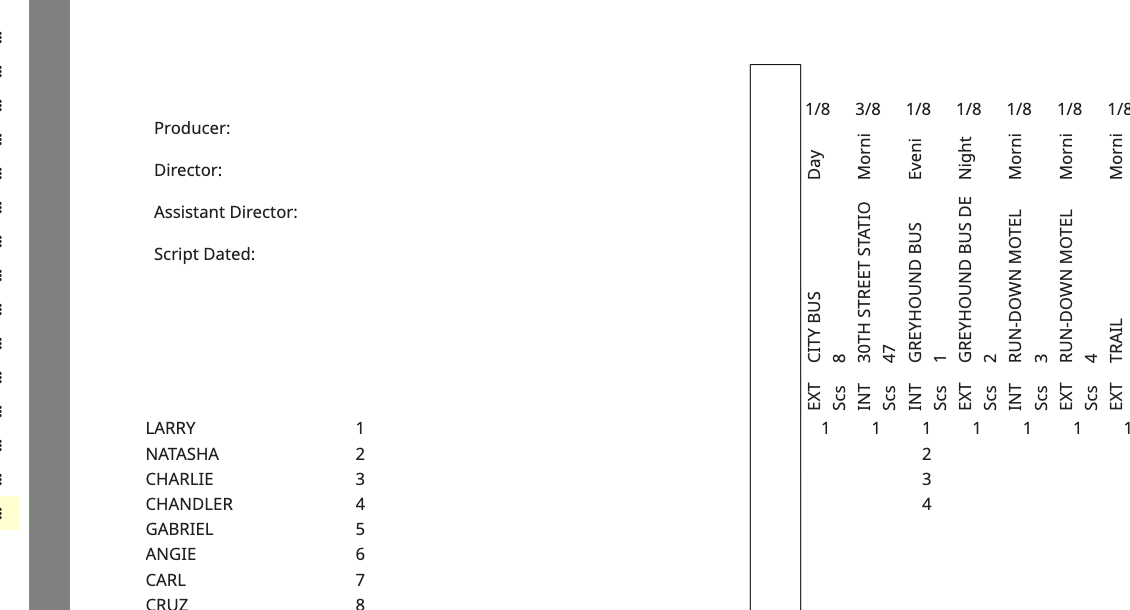
The One-line Vertical report prints a vertical one-liner keyed to a cast ID grid on the cover page. Each cast ID holds the same row on every strip, so you can see who is called for a scene by position rather than by reading the numbers. One-Line Vertical appears below One-Line Schedule in the report list.
Cover Page
Create, name, save and duplicate layouts the way you do for any other report. Page 1 carries the cover block listing each cast member against their cast ID, with production information pulled from the Header tab.
Vertical Strip Designer
Cells stack top to bottom, and drag, drop and resize act vertically. Because a vertical strip runs taller than the designer dialog, you design the fields above the Cast ID Block and the fields below it as separate sections.
Cast ID Block
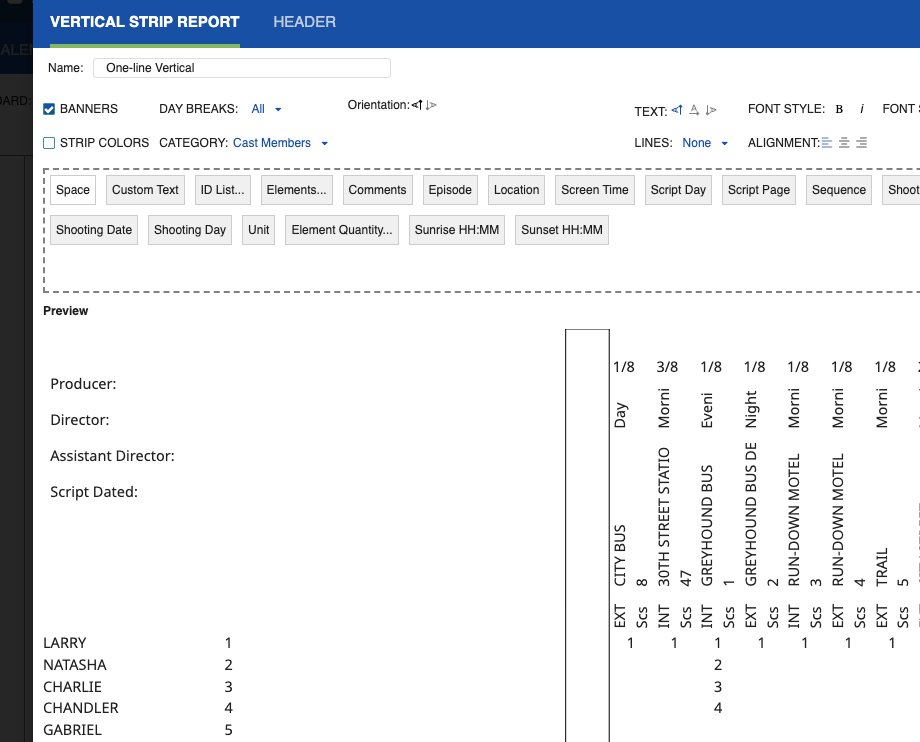
Drop the Cast ID Block onto the strip to carry the cast grid that keys back to the cover page. Each cast ID keeps its assigned row, so a cast member who is not in the scene leaves an empty row rather than shifting everyone below them.
Text Direction Per Cell
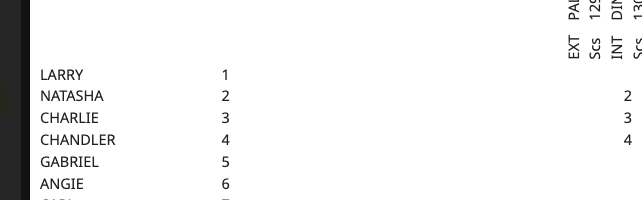
Set text direction on individual cells so short values such as scene number, page length and background quantity read left to right inside a vertical strip. Day break strips and shoot day banners take their direction at strip level, with banners keeping the thick and thin sizing they have on the one-line schedule.
Element Prefix
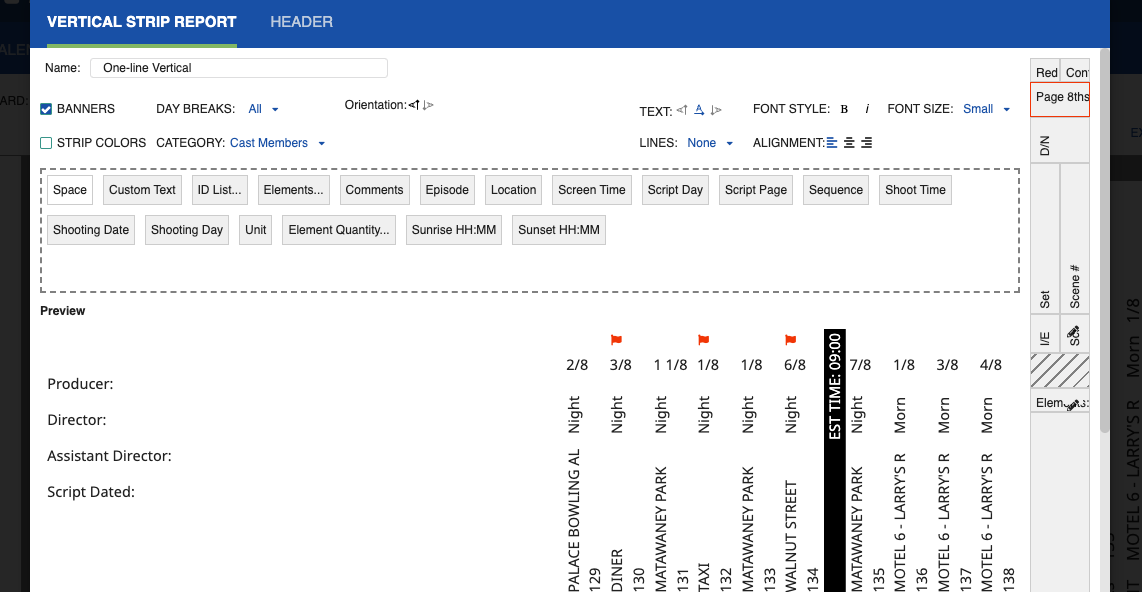
The Elements field accepts a short prefix you type, so a long element category name fits in a vertical cell. The strip prints your prefix in place of the full category name.
Report Controls
Settings you already use on One-Line Schedule carry over: banners, shoot days, strip colors, red flags, conflicts, lines, font style, font size, alignment, date range control, and category selection. The show and hide line controls apply to the vertical output as well. The dotted line style is not offered on this report.